How to Set Up the HMD Fuse: A Smartphone Built for Kids
Many parents have shared that stepping into the digital world with their children can feel overwhelming, and that setting up parental controls often seems complicated. We understand that every family is unique, and there isn’t a one-size-fits-all solution that works for everyone.
That’s why we recently partnered with SafeToNet to introduce our newest device, the HMD Fuse. This smartphone stands in a category of its own — a world-first device featuring innovative software designed specifically to make a child’s introduction to smartphones and the online world safer and more manageable for families.
Setting up your HMD Fuse
To make setting up your HMD Fuse simple, we’ve created a helpful video guide. We’ve also provided step-by-step written instructions below so you can follow along at your own pace. We recommend completing the setup together with your child, so you both understand how the phone works — how it looks, feels, and operates.
You can watch the setup video above or view it here:
https://youtu.be/sTOWVEgtQuI
Alternatively, follow the instructions below to set up your HMD Fuse.
Step 1: Start with the Parent or Guardian Device
-
Download the HarmBlock+ app on your iOS or Android device.
-
Create an account.
-
Follow the prompts to verify your email and set your password.
Step 2: Begin Setup on the HMD Fuse
After completing the parent setup, move to the child’s HMD Fuse device:
-
Copy apps and data (if applicable).
-
Sign in with an existing Google account or create a new one for your child.
-
Choose your preferred security settings (PIN, etc.).
-
Review and accept Google’s Terms of Service.
-
Keep the HarmBlock+ app open during setup.
-
Review and grant the requested permissions on the HMD Fuse:
-
Allow App Permission Settings
-
Go to Permissions → Settings → Location → Allow all the time (then return to the HarmBlock+ Junior app)
-
Go to User Data Access Settings → Settings → HarmBlock+ → Permit Usage Access (then return to the app)
-
Enable Notification Permissions
-
-
Tap Set Up Complete.
-
Review and accept the Terms of Service and Privacy Policy.
-
A QR code will appear. Keep this screen open — you’ll use it to pair the device with the guardian’s phone.
Step 3: Pair the Two Devices
-
On the guardian’s device, open the HarmBlock+ app.
-
Select Add a Device.
-
Scan the QR code displayed on the child’s HMD Fuse.
-
Enter the child’s phone number associated with the device.
-
Create your child’s profile.
-
On the HMD Fuse, proceed through the introduction screens.
-
Tap Set Up HarmBlock.
-
Go to Accessibility → HarmBlock → Use HarmBlock → Allow.
Setup is now complete.
Which Parent Phones Are Compatible with the HMD Fuse?
You don’t need an HMD device to pair with the HMD Fuse. The HarmBlock+ app works on both iOS and Android smartphones, so there’s no need to purchase a new phone just to connect with your child’s device.
The HMD Fuse is designed to integrate easily into your family’s existing setup, making the process simple and stress-free.
Features for Parents
Designed to Grow with Your Child
The HMD Fuse adapts as your child grows. Unlike typical children’s phones or standard adult smartphones, you can adjust rules, boundaries, and permissions over time to match your child’s maturity and needs.
HarmBlock AI Protection
Built-in HarmBlock AI automatically blocks nude imagery from being viewed, captured, or saved, helping create a safer digital experience.
AI Privacy by Design
HarmBlock AI operates locally on the device. It does not collect, share, or process user data externally — it simply performs its protective function directly on the phone.
Starts Simple, Expands When Ready
The HMD Fuse begins as a basic feature-style phone. Parents choose which apps and features to enable, rather than needing to disable unwanted ones later.
Live Location Tracking
Monitor your child’s location in real time, with updates every 24 seconds during active 30-minute tracking sessions. Afterward, tracking continues in the background at longer intervals to help preserve battery life.
Customizable Safe Zones
Create up to 10 safe areas and receive alerts when your child enters or leaves those designated locations.
Location History
Access a three-day location history, with updates logged every five minutes.
Contact Approval System
Stay informed about who your child communicates with by pre-approving their contacts. (Currently applies to calls and SMS, not third-party messaging apps.)
App and Screen Time Management
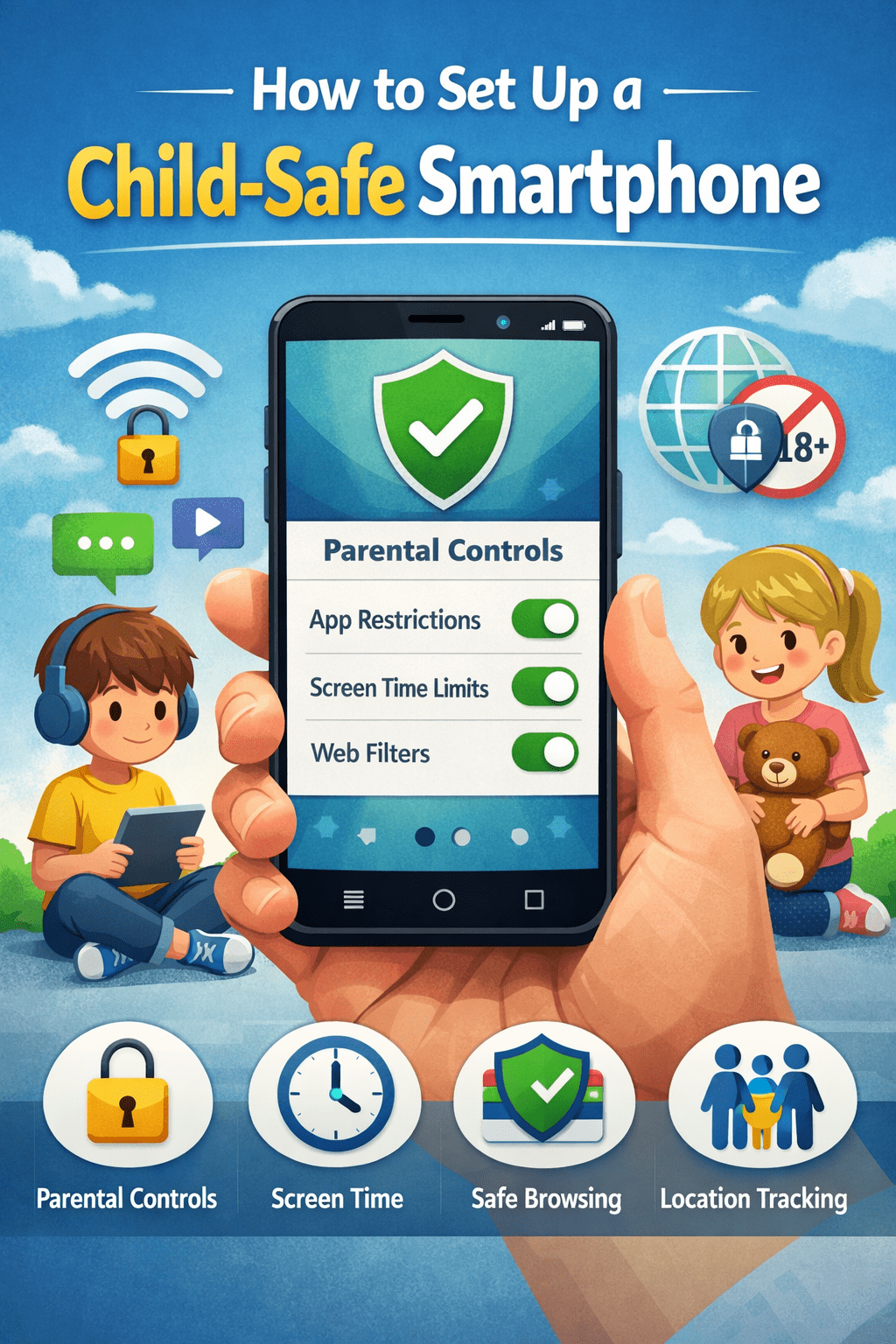
Control which apps are visible and accessible, set daily screen time limits, and manage usage schedules — all in real time from your own device.
DIY Screen Repairs
Replace common components such as screens or batteries at home using official self-repair kits.¹
School Mode
Minimize distractions during school hours by pausing most apps and features, while still allowing important calls and messages from approved contacts.
Bedtime Mode
Automatically blocks non-essential apps and entertainment features at night, helping children disconnect and rest.
Features for Kids
Personalized Style Options
Kids can customize their phone with clip-on outfits such as the HMD Fusion Flashy Outfit (great for photos) and the HMD Fusion Gaming Outfit (ideal for gaming on the go).²
Advanced Camera Performance
Capture moments with a 108MP rear camera and 50MP front camera, plus fun features like gesture selfies and selfie slow-motion.
Sleek, Repairable Design
A modern look combined with easy at-home repairability — because cracked screens shouldn’t be permanent.
Request Extra Screen Time
If daily limits are reached, children can send a request for additional time directly from their device.
Where Can I Buy the HMD Fuse?
The HMD Fuse comes with HarmBlock+, a first-of-its-kind built-in safety system that provides protection straight out of the box.
To find purchasing options in your region, visit: https://www.hmd.com/self-repair
About Author